ResRequest Support
  • Home
  • Modules
    • Central Reservations
    • Channel Management
    • Customer Relationship Management
    • Business Intelligence
    • Property Management
    • Financial Management
  • Latest News
    • Webinars
    • Coffee Chats
    • Professional Services
    • Product Releases
    • Technical Alerts
  • For System Administrators
    • Developer
    • System Setup
    • Technical Tips
  • Add-On Products
    • ResConnect
    • ResNova
    • ResInsite
  • Product
    • ResRequest Enterprise
    • ResConnect
  • Contact Us
  • Menu Menu

Connect with Booking.com

Connect with Booking.com

Booking.com is a travel fare aggregator website and travel metasearch engine for lodging reservations. It is owned and operated by and is the primary revenue source of United States-based Booking Holdings. Booking.com is headquartered in Amsterdam.

If you’re not yet a Booking.com customer and you’d like to use their service, you’ll need to first sign up with Booking.com and setup your profile on their extranet (back office).

These guide details the main steps to follow to get the interface up and running.

VERSION 7.14 REQUIRED

Booking.com requires you are running version 7.14. (or later) of ResRequest. Contact our support team to arrange your upgrade.

Steps to connect to Booking.com

  1. Sign up with Booking.com
  2. Setup your profile on Booking.com’s extranet
  3. ResRequest will connect your system to Booking.com
  4. Take care of the bookings that come rolling in!

A closer look

Let’s go through each of these steps in more detail.

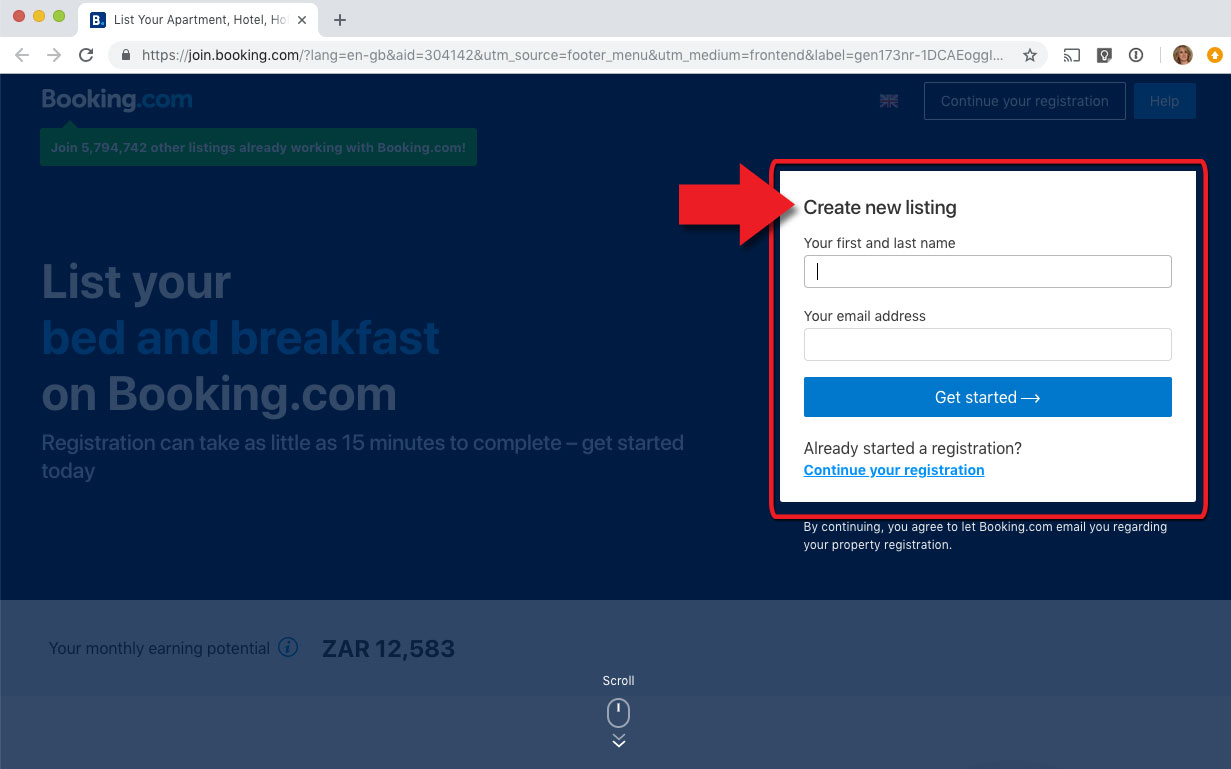
Step 1: Sign up with Booking.com

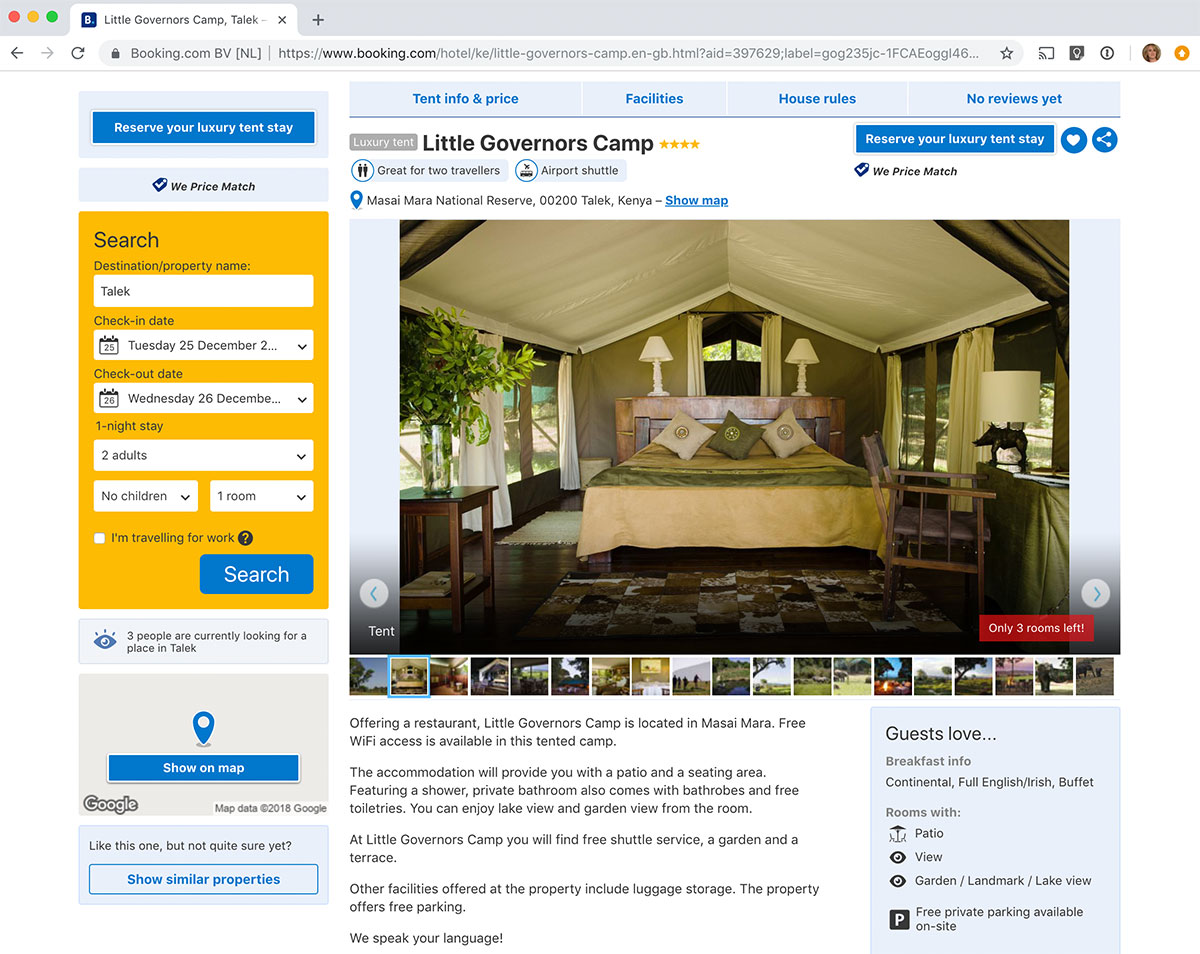
If you’re not yet a Booking.com customer, you’ll need to first sign up with them. To sign up, contact Booking.com via their website.

Setting up your property is an automated process described in Step 2. 

Here are Booking.com’s guides to the sign up steps.

Step 2: Setup your profile on Booking.com’s extranet

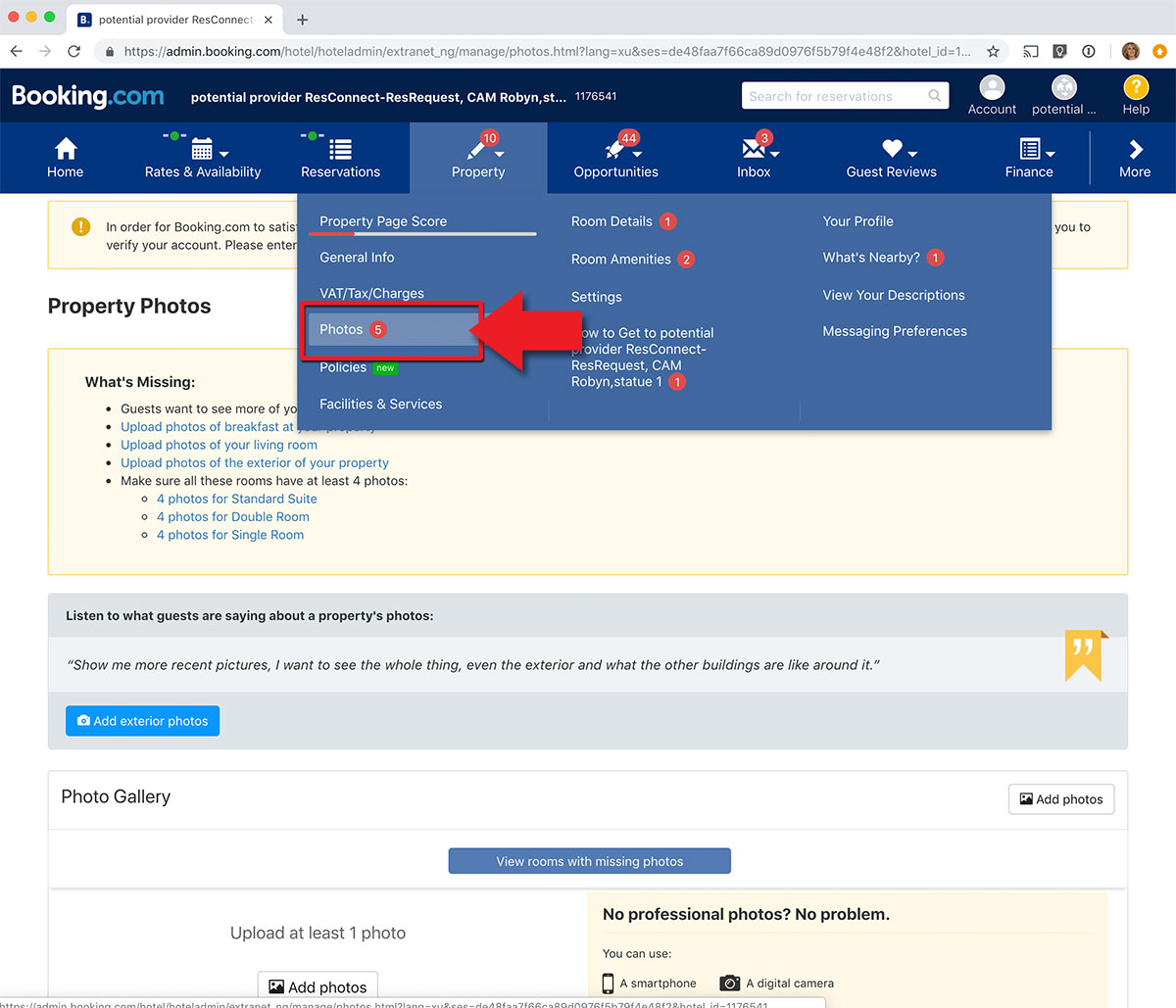
Next setup your Booking.com profile on the Booking.com extranet.

Upload your pictures and descriptions on Booking.com.

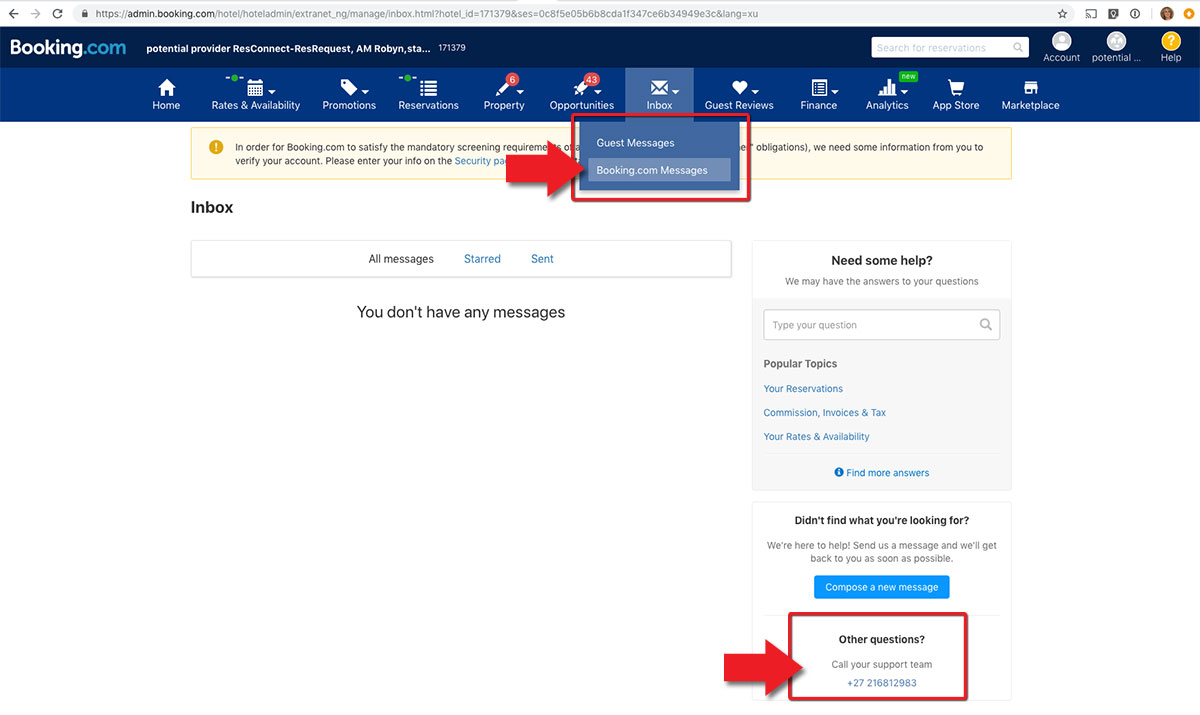
For help with setting up your Booking.com property, view Booking.com’s online support site.

Alternatively contact them directly from the Booking.com extranet:

Step 3: Connect ResRequest to Booking.com

Here’s when we kick into action. As soon as your profile is up and running, send our support team an email requesting we connect your ResRequest system to your Booking.com profile.

We need a few details from you for us to setup the connection. To make it easy, it would be great if you could send us these details with your first email:

  1. Tell us what Agent to link to in ResRequest
    Confirm if you already have an agent for Booking.com. If you do not have an agent, we will setup a new agent when we prepare the connection.
  2. Advise us what Commission should be setup for Booking.com
    The rates sent from ResRequest are setup as Rack / commissionable rates. To apply the commission relevant to the agent, please advise us what commission to apply to your Booking.com agent.
  3. Advise what Payment Plan should be linked to Booking.com
    Let us know what Payment Plan bookings should be created with when booked via Booking.com
  4. Advise what Property and Room Types you will be connecting
    Send us confirmation of the hotel and rooms you will setup on your Booking.com connection.
  5. Advise what Rates in ResRequest should be mapped to your Rates in Booking.com
    When you setup your hotel on Booking.com’s extranet (back office) you would have setup rate types. We need to know which rate types you will map to your ResRequest rate, for example:
Map this rate in Booking.com…… To this rate in ResRequest
Public rateRack rate


As soon as we have these details we will setup the user account for Booking.com. The user will be setup to have the ability to ‘Make a Booking’ and ‘Override a Rate Amount’. 

Our team will notify you when the tests are completed.

INSERT

User Access

Please plan for 3 hours once-off setup for the connection. While the setup is approximately 3 hours, it can take a few days to complete as we may have some back and forth to confirm the setup. The 3 hour once-off charge will be added to your billable service sheet at our standard annual support rate (for 2019 this is: $35 / R390 per hour).

CREDIT CARD PAYMENTS

We will also be recording payments on Booking.com, although the credit card details will not be processed. Automation of credit card transactions for Booking.com will be released in 2019.

Step 4: Take care of your online bookings

Once your connection is activated, learn how to manage your bookings using the Requests Received function. For more information, view our Manage Online Bookings module.

For more information, please contact our call centre.

Have a look at Booking.com’s Automatic sign up tool guide

CHANNEL MANAGEMENT

Getting started

  • What’s available in channel management

Bookings from your website

  • ResNova
  • ResRequest booking options
  • The ResRequest booking page
  • ResNova
  • Working with ResRequest’s API
  • Handling bookings from online channels

Distribute to Agents

  • Travel agents
  • Connect your stock to Agents
  • Give your Agent a login

OTA sales

  • What are OTAs
  • Connect your stock to OTAs
  • Connect with Booking.com
  • OTA Cancellations

Keep up to date with us

Subscribe to our blog
Atta Logo    Satsa

Menu

  • Home
  • Product Releases
  • Contact Us
  • Technical Alerts
  • Coffee Chats
  • Webinars
  • Professional Services
  • Email Series 2022
  • Webinars Index
  • Email Series 2023

Privacy policy
Terms of use
Fair use policy

Visit our website

ResRequest website

ResRequest Modules

  • Business Intelligence
  • Central Reservations
  • Channel Management
  • Customer Relationship Management
  • Developer
  • Email Series 2022
  • Email Series 2023
  • Financial Management
  • Marketing tools
  • Payment Gateways
  • Point of sale
  • Product
  • Professional Services
  • Property Management
  • ResConnect
  • ResInsite
  • ResNova
  • System Setup
  • Technical Alerts
  • Technical Tips
  • Telephone Management
  • Webinars Index
© Copyright - ResRequest Support - Enfold WordPress Theme by Kriesi
What’s available in channel managementGive your Agent a login
Scroll to top

This site uses cookies. By continuing to browse the site, you are agreeing to our use of cookies.

Accept settingsView SettingsIgnore

Cookie and Privacy Settings


How we use cookies

We may request cookies to be set on your device. We use cookies to let us know when you visit our websites, how you interact with us, to enrich your user experience, and to customize your relationship with our website.

Click on the different category headings to find out more. You can also change some of your preferences. Note that blocking some types of cookies may impact your experience on our websites and the services we are able to offer.

Essential Website Cookies

These cookies are strictly necessary to provide you with services available through our website and to use some of its features.

Because these cookies are strictly necessary to deliver the website, refusing them will have impact how our site functions. You always can block or delete cookies by changing your browser settings and force blocking all cookies on this website. But this will always prompt you to accept/refuse cookies when revisiting our site.

We fully respect if you want to refuse cookies but to avoid asking you again and again kindly allow us to store a cookie for that. You are free to opt out any time or opt in for other cookies to get a better experience. If you refuse cookies we will remove all set cookies in our domain.

We provide you with a list of stored cookies on your computer in our domain so you can check what we stored. Due to security reasons we are not able to show or modify cookies from other domains. You can check these in your browser security settings.

Other external services

We also use different external services like Google Webfonts, Google Maps, and external Video providers. Since these providers may collect personal data like your IP address we allow you to block them here. Please be aware that this might heavily reduce the functionality and appearance of our site. Changes will take effect once you reload the page.

Google Webfont Settings:

Google Map Settings:

Google reCaptcha Settings:

Vimeo and Youtube video embeds:

Accept settingsClose